The purpose of this document is to explain the testing of the implemented RubyPlay Seamless Wallet API using a predefined Postman collection.
The audience is the third-party operators that integrate with RubyPlay.
Testing is intended to help the Operator ensure the implemented API is working correctly.
The RubyPlay Seamless Wallet API has to be implemented by the Operator before testing.
The Operator has to install the Postman application. Go to the Postman official website to download the required app.
We use screenshots of Postman v10.19 in this document.
For successful testing, the Operator has to perform the steps described below.
Download the collection file, which has to be imported to the Postman app:
RGS-RGS.postman_collection.json
To import Postman collection:
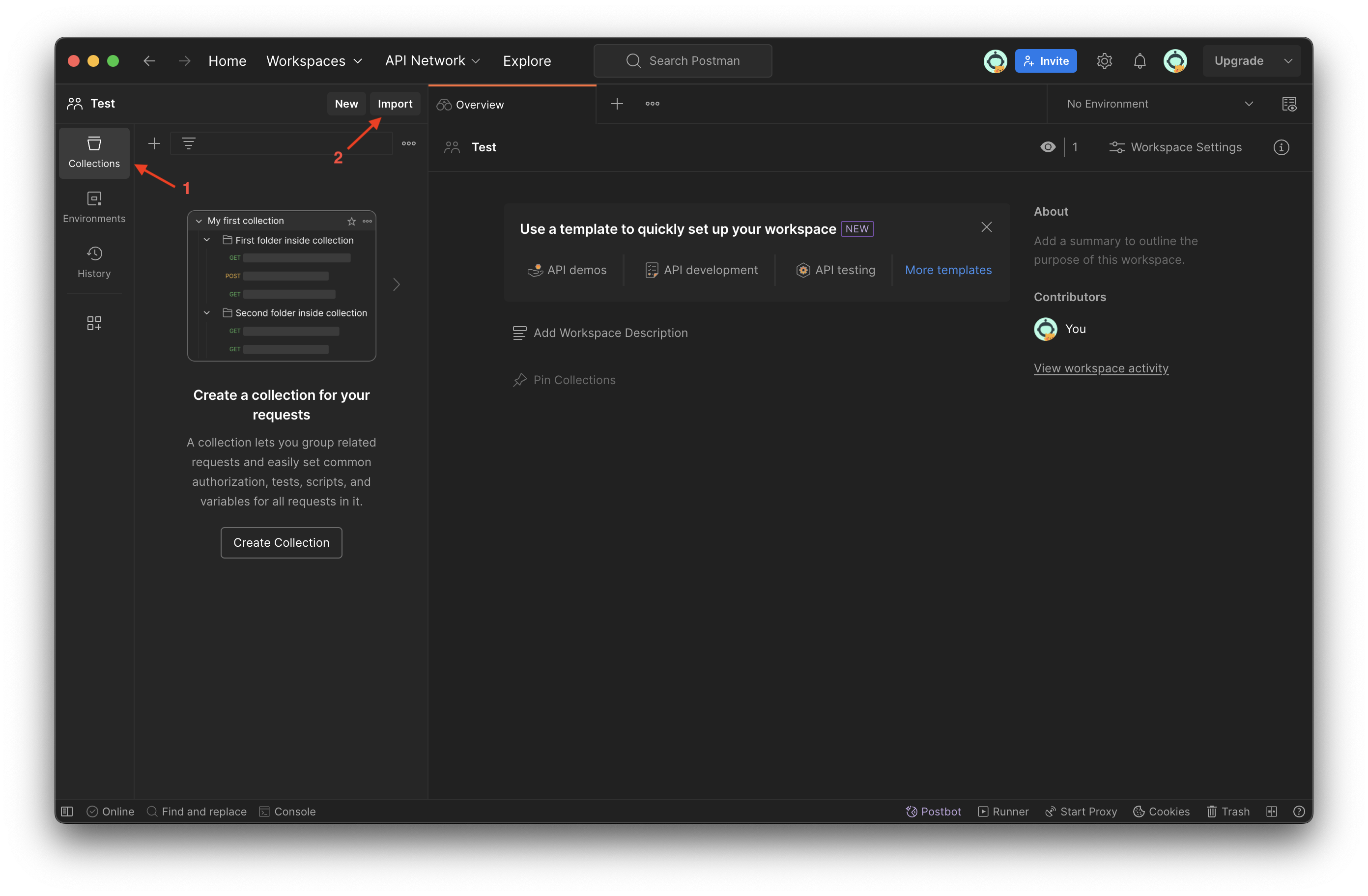
- Open Postman by clicking its icon

- Select Collections and then click Import
- Click Select files or use Drag and Drop method to import the collection

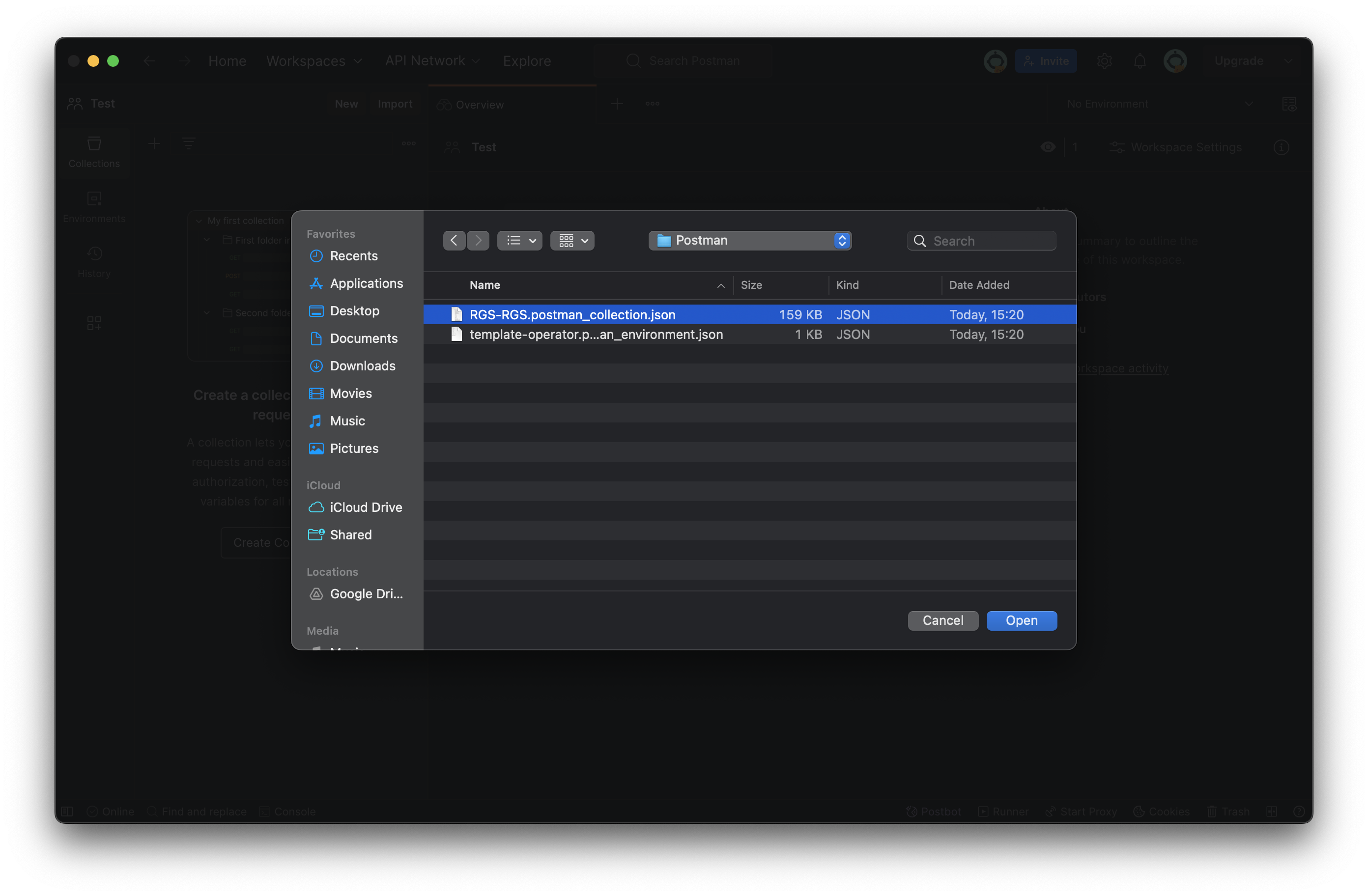
- Choose the
RGS-RGS.postman_collection.jsonfile in the dialog box and click Open. Postman will automatically import this file
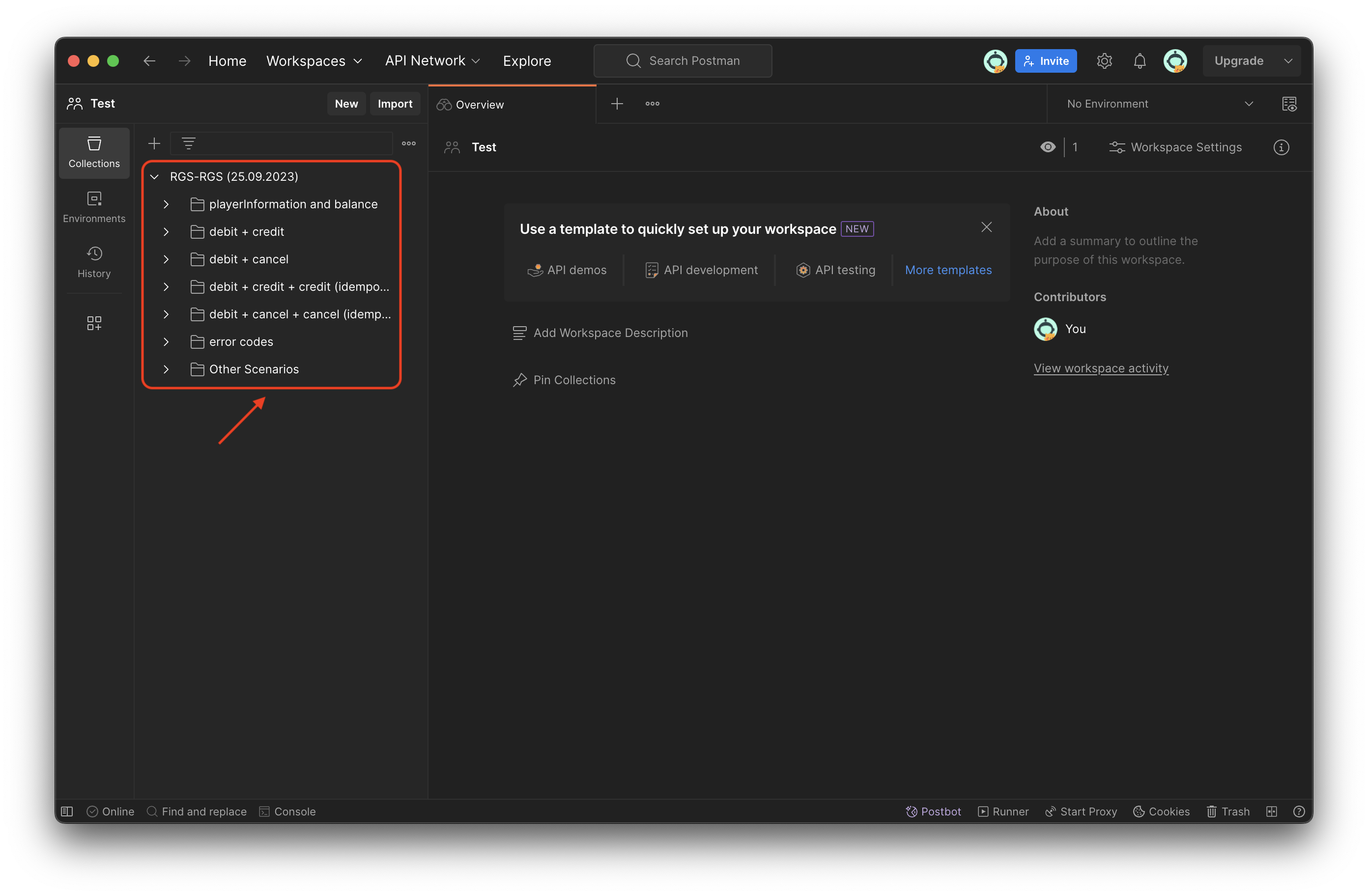
The next step is to import the Environment file to Postman.
- Download the template of the Environment file
template-operator.postman_environment.json
You can change the name of the Environment file.
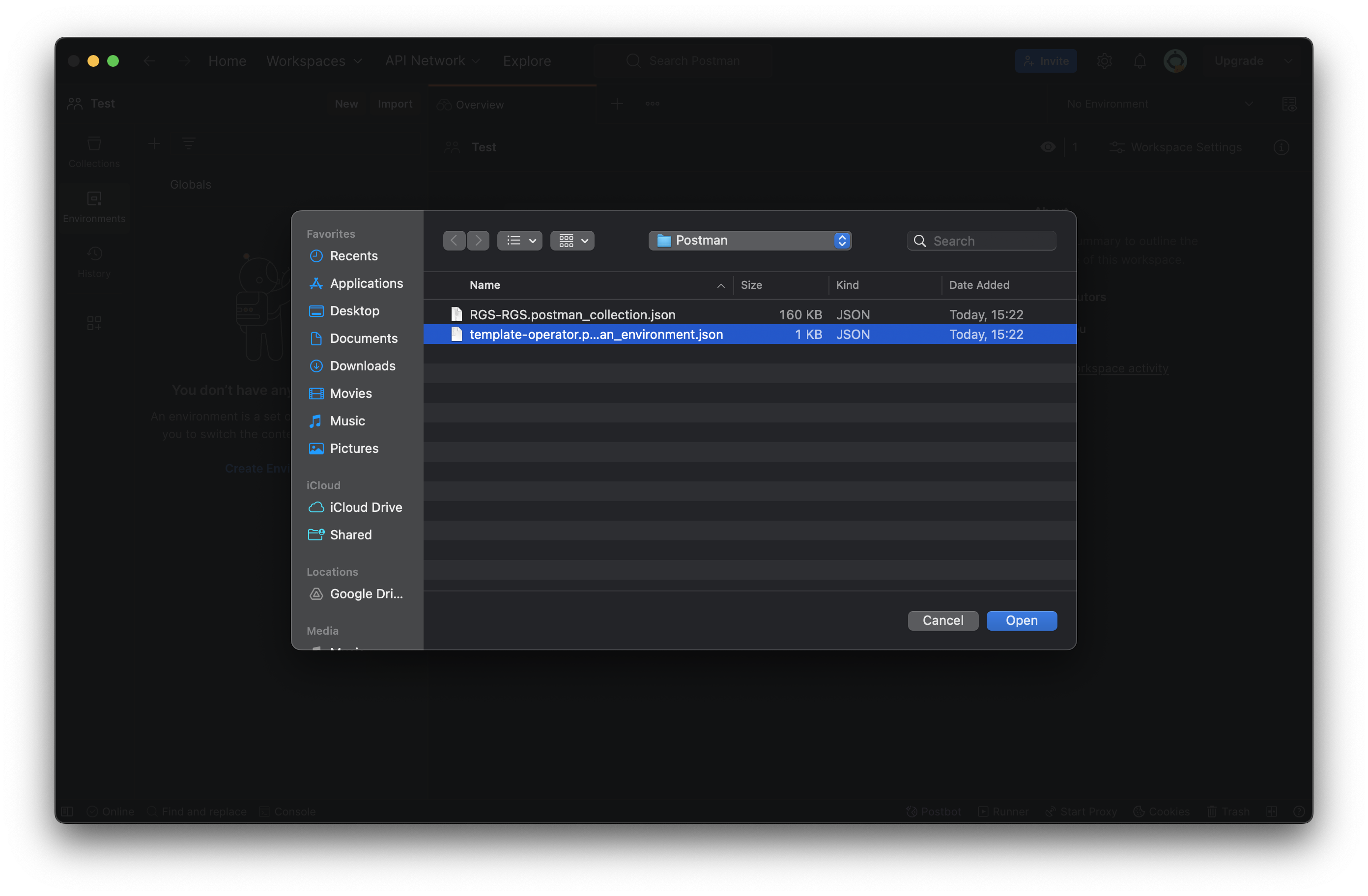
- Select Environments and then click Import
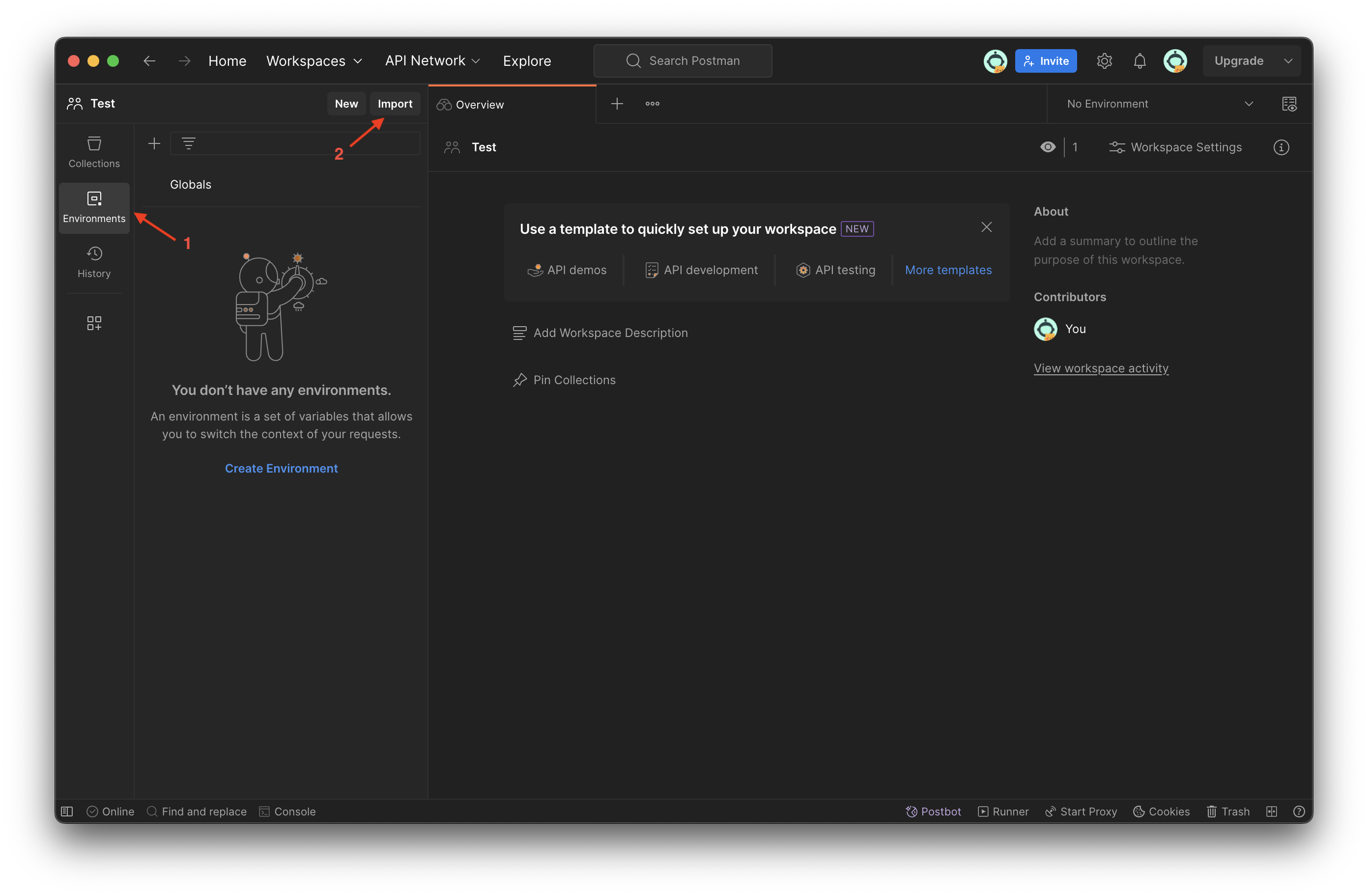
- Import
template-operator.postman_environment.jsonas you did withRGS-RGS.postman_collection.json
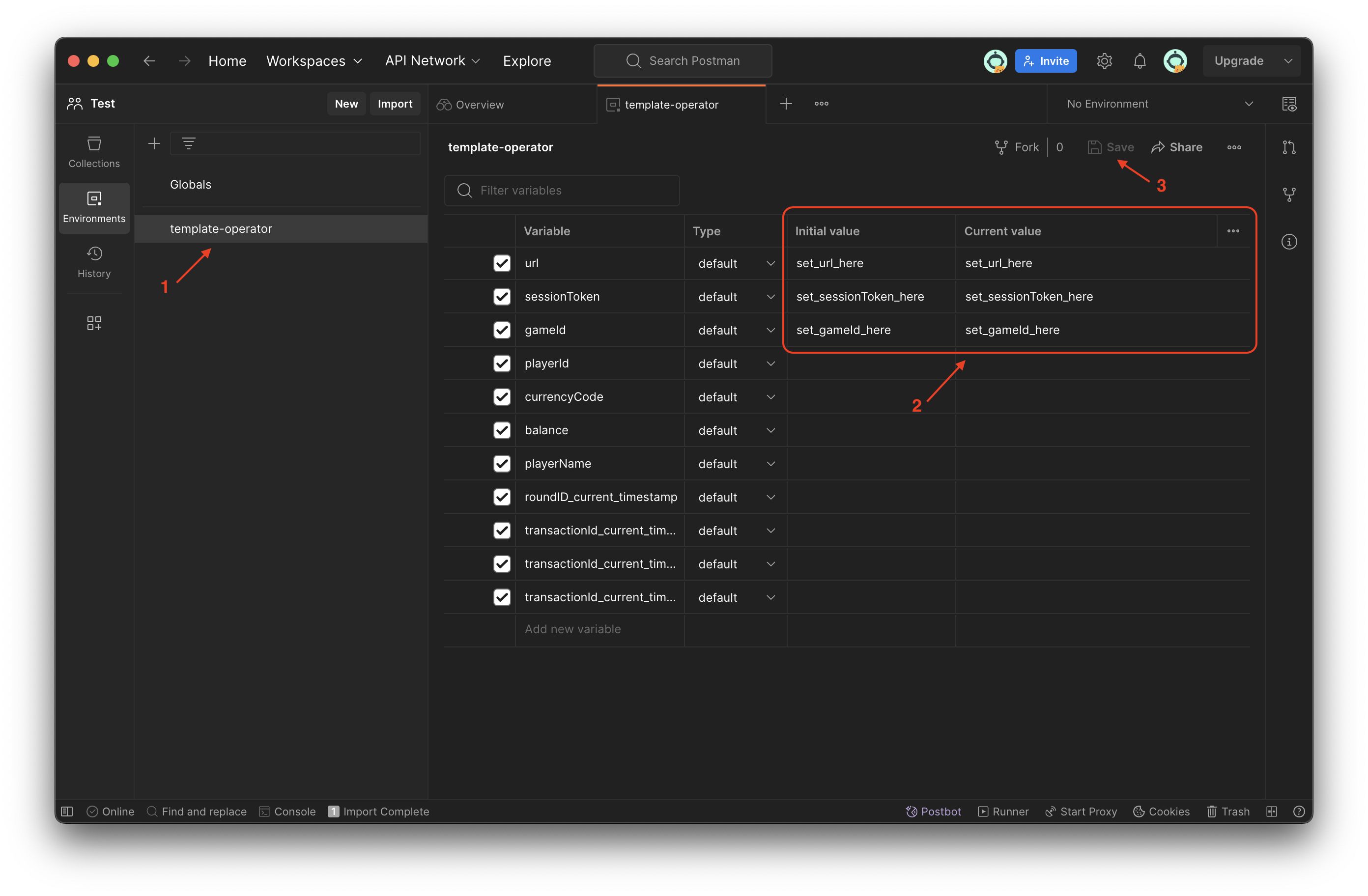
- Click
template-operator, change the specified fields in the template (url,sessionTokenandgameId) and then click Save
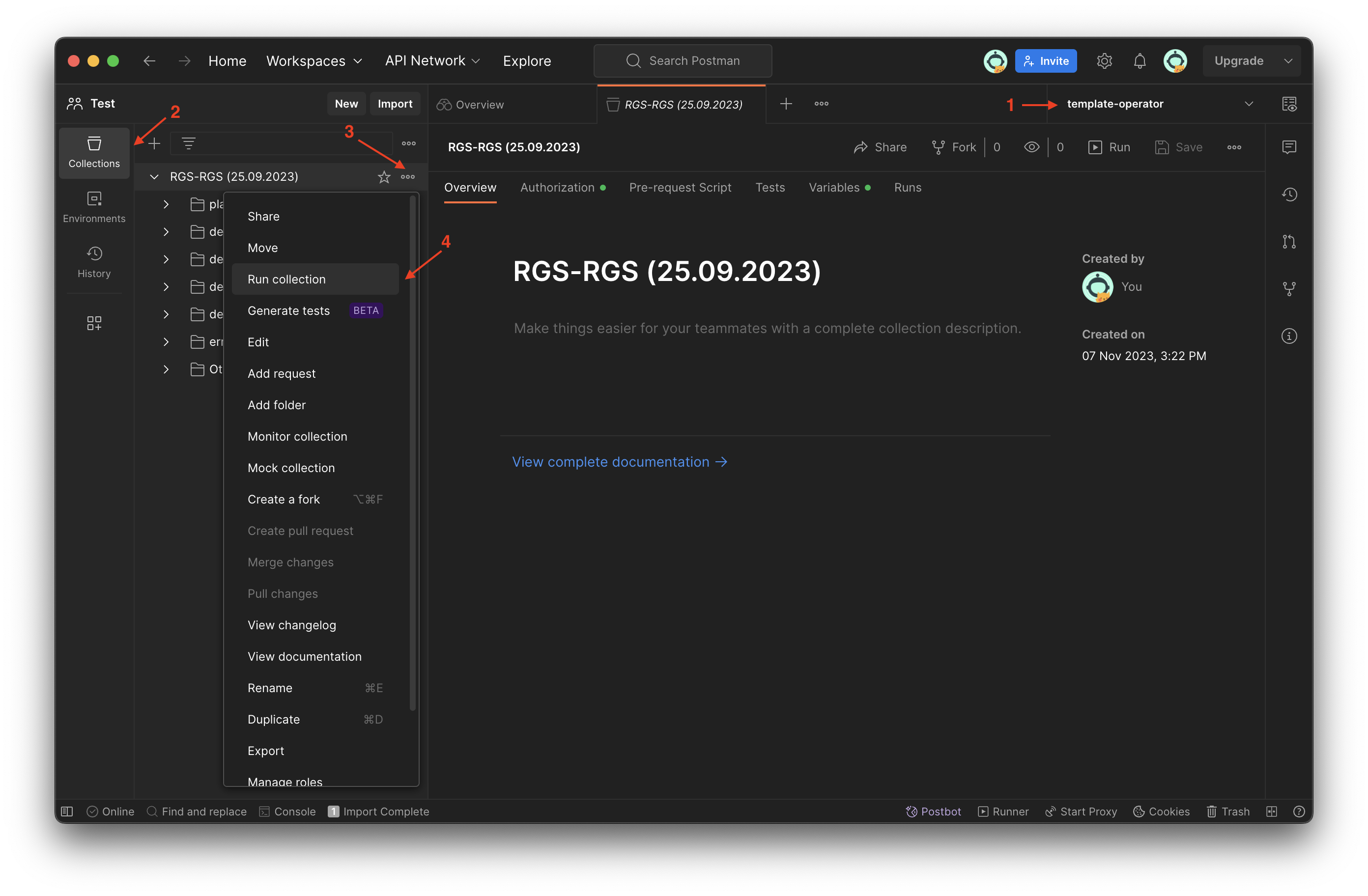
After importing the Environment file to Postman, choose template-operator in the following select box:

The next step is to launch the Collection Runner to perform the testing. Do the following:
- Make sure the Environment file is chosen
- Click Collections to open the existing collections
- Choose the
RGS-RGScollection and click ... - Click Run collection
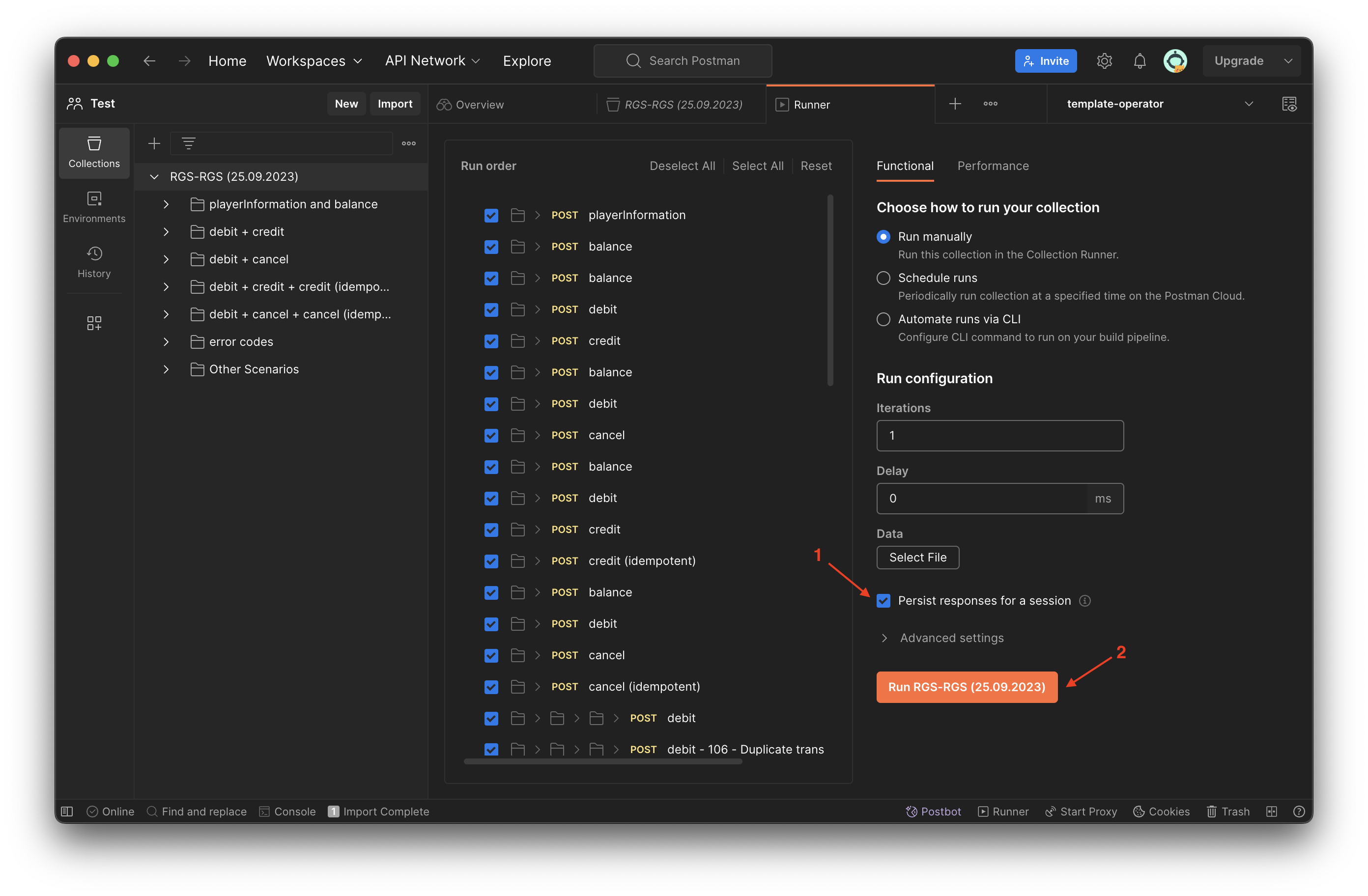
- Select the pointed check box and click Run RGS-RGS
- After successful testing you will see the following results

- In case of some failures, please retry testing by clicking Run Again and if the failures occur again, check the implemented Seamless Wallet API.